
This user guide describes how to sign a contract.
If you are signing an assignment contract, a monthly contract, or a contract as an hourly paid employee via this solution, you will receive an e-mail with a link for electronic signing.
Once the contract is electronically signed and the start date has passed, you will receive a new e-mail with information about your user account creation. This user will provide access to the DFØ app and the self-service portal.
After signing a contract, you will gain access to a menu option called My Contracts. There you will find an overview of active, future, and expired contracts which you have signed.
If you have signed an hourly contract, you also register your hours against the contract under the My Contracts menu option.
Logging in
You will receive an email containing a link to the contract signing solution. When you open the link, you will first be taken to a login page. To log in, you must request a one-time password:
- Click Get password (SMS) to receive the code by text message.
- Click Get password (voice) to receive the code through an automated phone call.
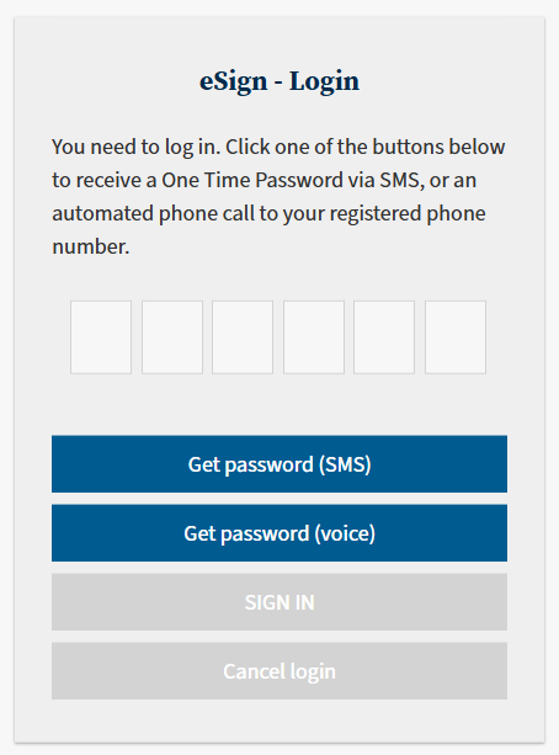
Once you have received the code, enter it in the blank fields and click SIGN IN.
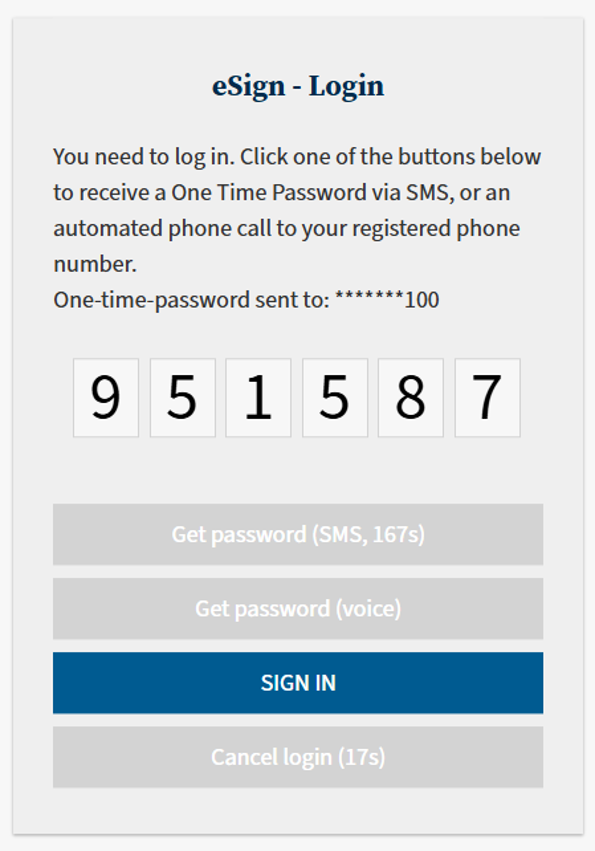
When you click one of the Get password buttons, the last three digits of the phone number to which the code has been sent will be displayed. The countdown shown on the buttons indicates how long the code remains valid.
Check personal information
You will proceed to a page where you need to verify personal information. Obligatory fields are marked with an asterisk "*".
If you are a new employee, all the fields will be available to edit, and some will be empty.
If you are already registered in the agency's payroll system, but you are not active, all the fields except the Norwegian national identity number will be available to edit.
If you are already registered as active in the agency's payroll system, the personal information registered for you will be pre-filled and not available to edit. If any of the personal information is incorrect, this can be corrected under User profile in the DFØ app or self-service portal. This means that if the contract for instance shows an old account number, you can choose to sign the contract and update this yourself once you have logged on to the system, instead of rejecting the contract.
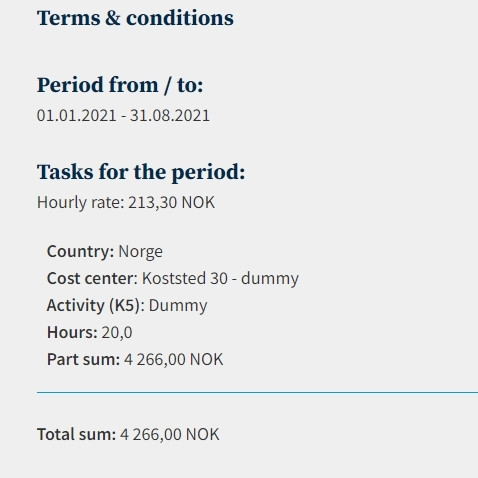
At the top of the page, you will find a summary of the terms of the contract.
You will first need to check the name, birthnumber/D-number, nationality, and address information.
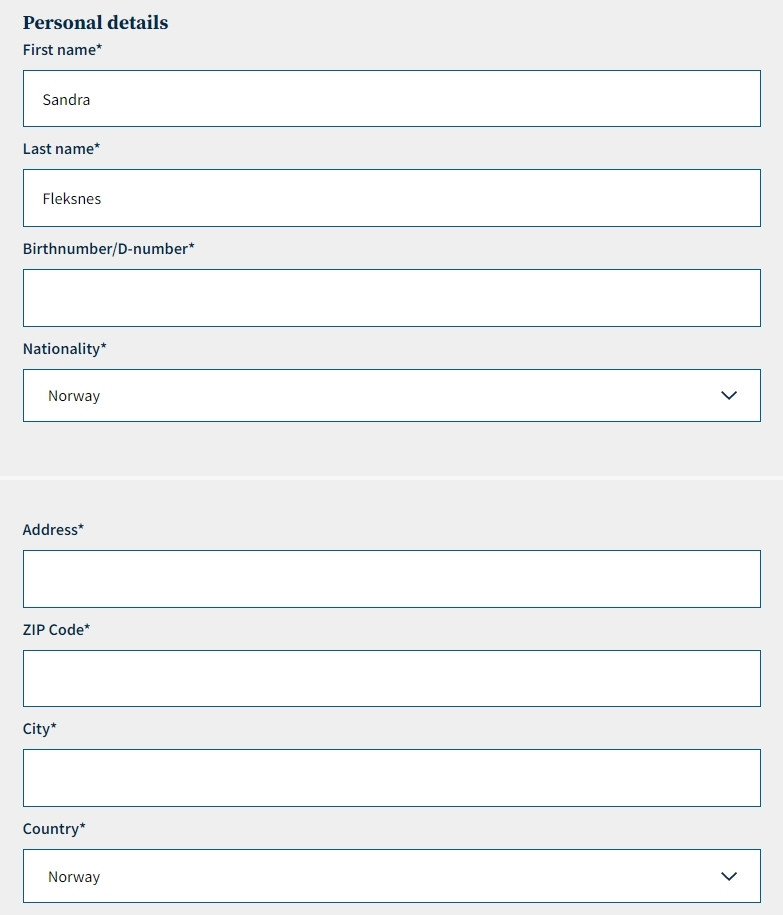
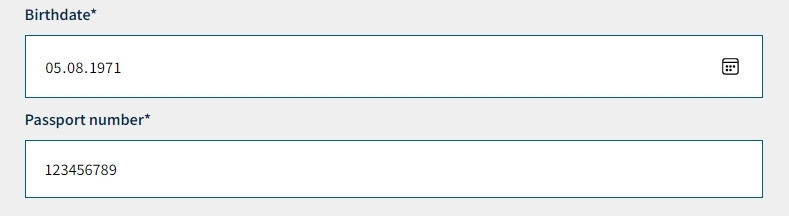
A new field will appear if your nationality is not Norwegian. In this case you must enter your birth date and passport number. Alternatively, you can enter your D-number in the Birthnumber/D-number field.
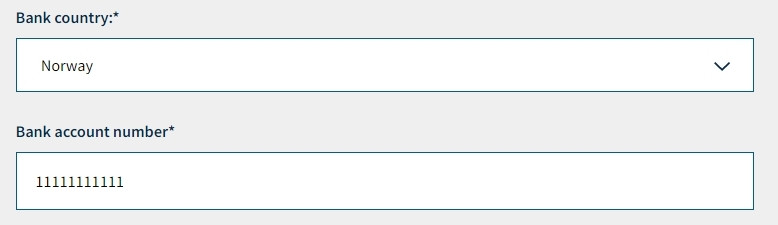
You will also need to enter your account number, if this is not pre-filled.
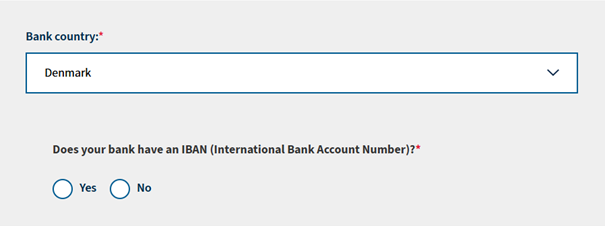
If you choose a bank country other than Norway, some additional fields will appear. First, you must answer Yes or No to the question of whether your bank have an IBAN (International Bank Account Number).
If you select «Yes», the following fields will appear:
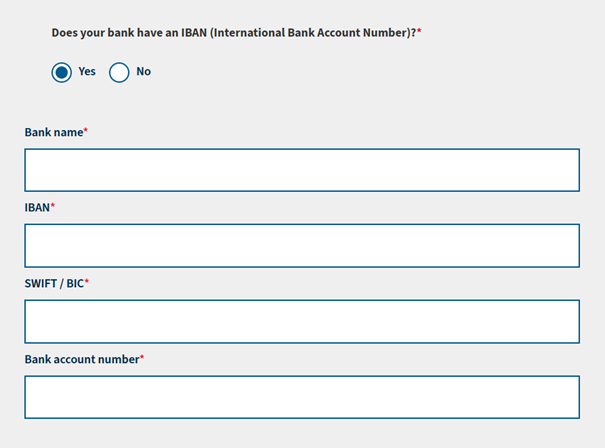
Here, you must enter the bank name, IBAN, SWIFT/BIC, and bank account number.
All fields are mandatory.
If you select No, the following fields will appear:
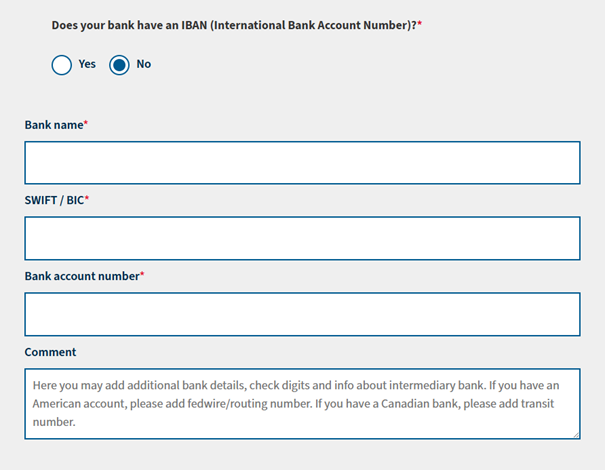
Here, you must enter the bank name, SWIFT/BIC, and bank account number. These fields are mandatory. In addition, there is a comment field that can be filled in if needed.
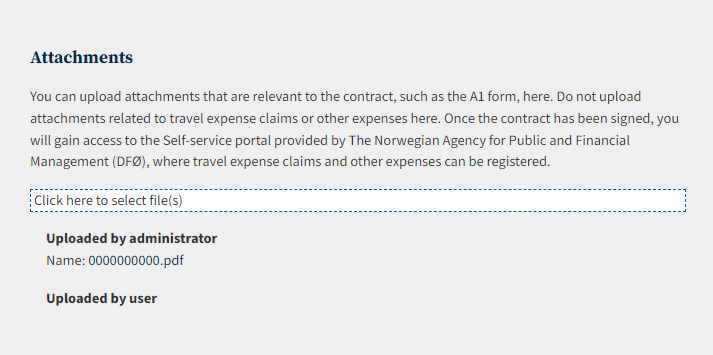
If the business has uploaded attachments to the contract, you will find these attachments under the heading Attachments. If you have attachments that are relevant to the contract, you can upload them here. Attachments related to travel expenses or other expenses must not be uploaded here.
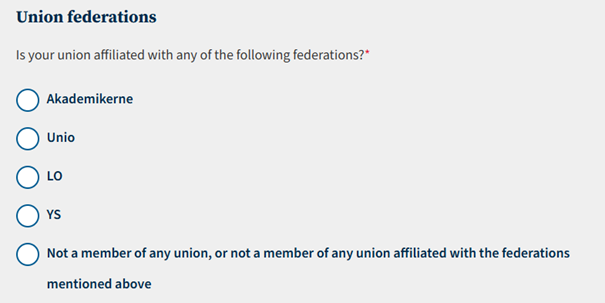
If you have provided a Norwegian national identification number or D-number, you must answer questions about union affiliation. You will be asked the question Is your union affiliated with any of the following federations?. You must choose between Akademikerne, Unio, LO, YS or Not a member of any union, or not a member of any union affiliated with the federations mentioned above. This question will not appear for assignment contracts, or an hourly contracts with pensioner salary.
If you are older than 57 years, a Norwegian citizen, and it is regarding an hourly contract, you will need to answer if you want a pensioner salary, or not. If the contract is an hourly contract with pensioner salary, this field will not appear. If you click Yes the contract is not signable and needs to be returned.
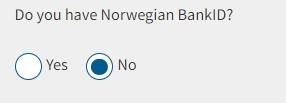
You must also answer the question Do you have Norwegian BankID?.
Approve or reject the contract proposal
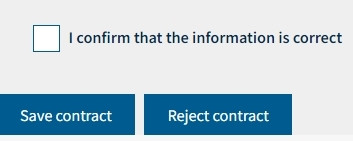
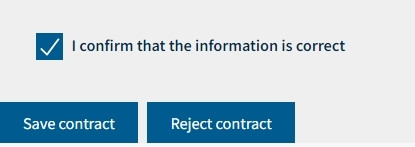
At the bottom of the page you can reject the contract by clicking Reject contract. If you want to approve the contract you need to tick the box for I confirm that the information is correct, and then click Save contract to proceed to signing the contract.
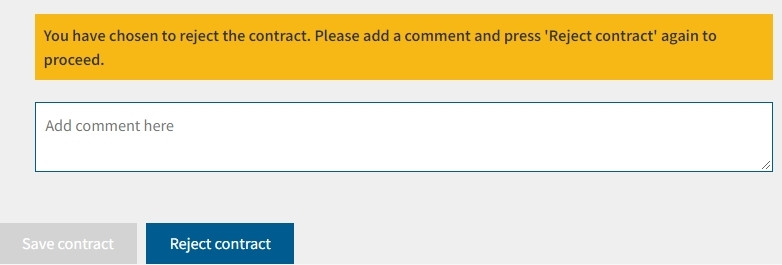
If you reject the contract you must leave the reason for this in the comment field. The contract will be returned to the caseworker when you click Reject contract again.
Signing the contract
The next two guides are divided by your answer to Do you have Norwegian BankID.
If you do not have a Norwegian BankID you can read I do not have a Norwegian birthnumber or D-number.
If you have a Norwegian BankID you can read I have a Norwegian birthnumber or D-number.
I do not have a Norwegian birthnumber or D-number
When you click Save contract you will see the contract proposal. You can download the contract in a PDF-format by clicking the download icon in the bottom right corner of the page. To sign the contract, click Sign document.
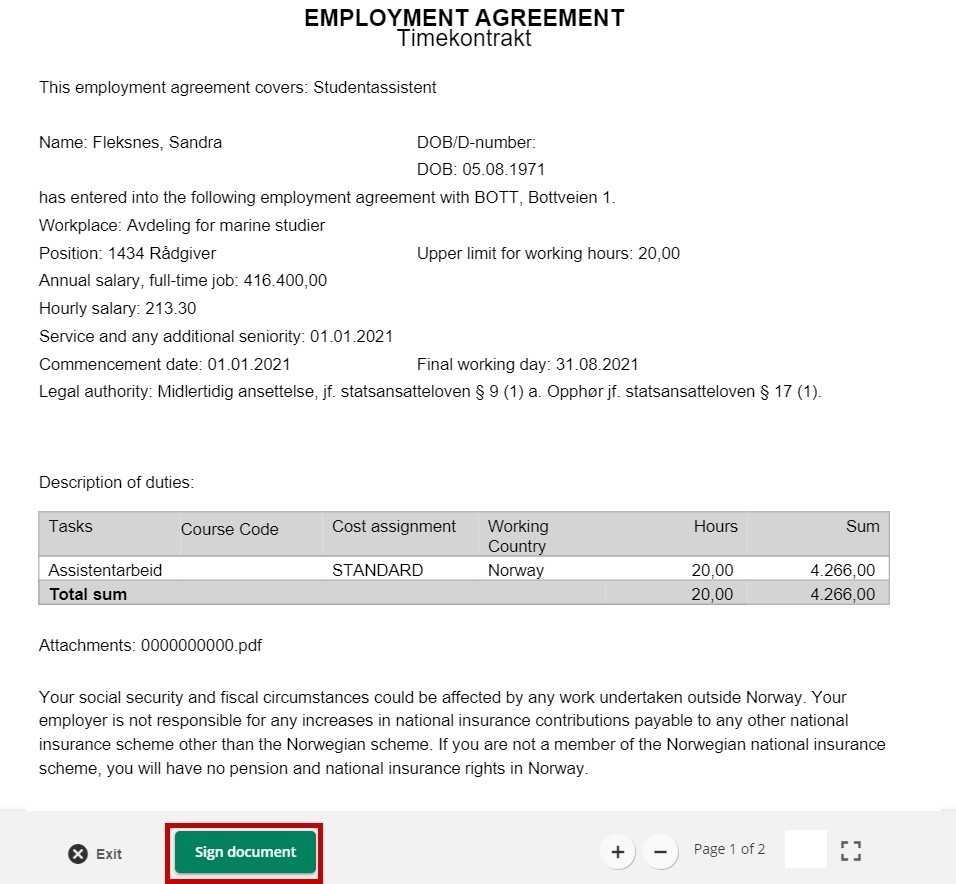
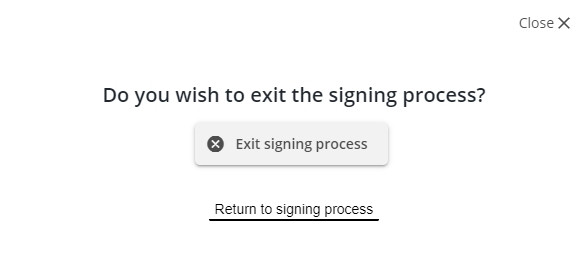
To cancel the signing, click Exit. A confirmation text will appear where you must click Exit signing process to confirm. The site for confirming personal information will appear.
When signing the contract, you must tick the confirmation box and click Save contract again.
The signing of the contract is divided in two steps.
In the first step you need to upload a picture of a valid identification, for example a colour copy of your passport or national ID card. You can choose between taking a picture by clicking the camera icon, or upload a file from your computer by clicking the upload icon.
Click Take a picture to take a picture. Click Upload front to upload a file. The system requires a JPG-format. It is not possible to upload a file in the Word or PDF format.
You must also take a picture of, or upload, the back of the identification card. You need both the front and back to be able to proceed.
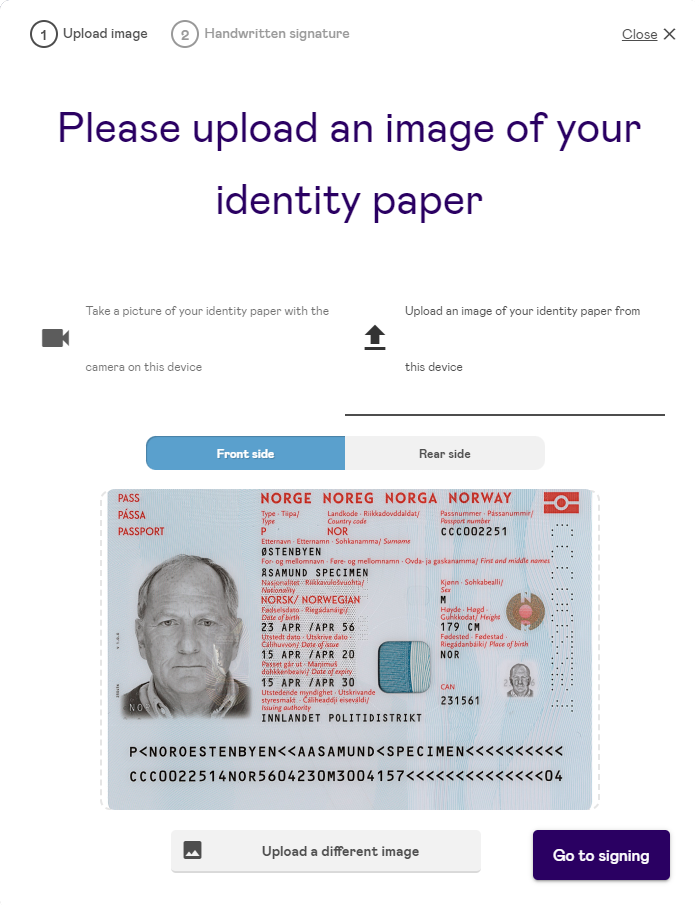
If you uploaded the wrong picture and want to replace it, you can click Upload a different image. Click Go to signing to proceed.
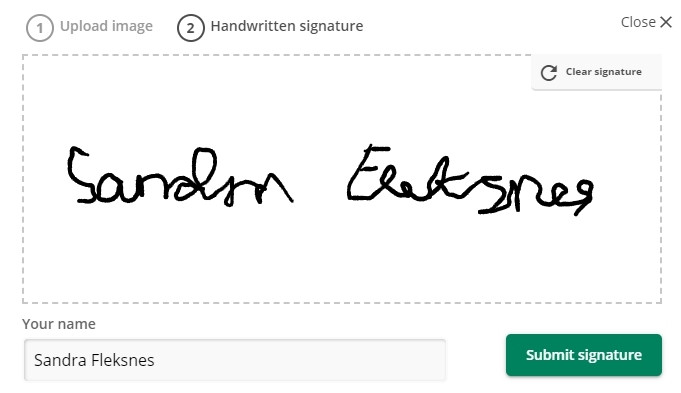
In the second step you enter your signature. Enter the signature and your name in the Name field before sending the signature.
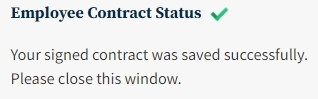
When this is done a confirmation box will appear. The contract is now signed.
I have a Norwegian birthnumber or D-number
When you click Save contract you will see the contract proposal. You can download the contract in a PDF-format by clicking the download icon in the bottom right corner of the page. To sign the contract, click Sign document.
To cancel the signing, click Exit. A confirmation text will appear where you must click Exit signing process to confirm. The site for confirming personal information will appear.
If you click Sign document you will be able to select the desired electronic ID. When this is done a confirmation box will appear. The contract is now signed.
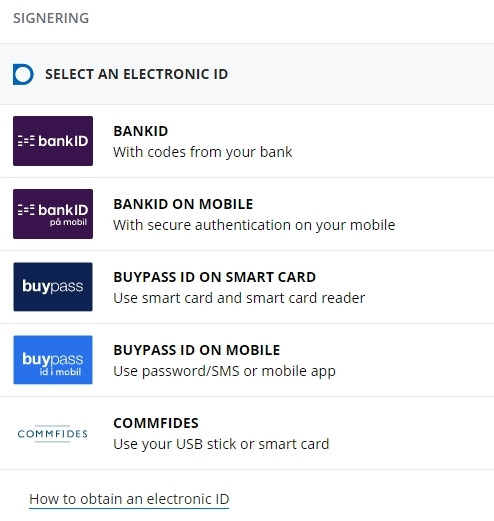
When this is completed a confirmation will appear on the page. The contract is now signed.
Do you have any questions about the contract?
Contact the agency who sent you he contract if you have any questions concerning the contract.
Kontakt
Do you have questions about the content of this page?
Contact our customer service centre
- lonn [at] dfo.no (lonn[at]dfo[dot]no)
- (+47) 40 63 40 21